
Managing expenses in onProject for projects with and without instalments is almost the same.
The difference is that if you have selected a project with instalments when creating your project, in the Expenses and Financial Reports menu, you will see an additional drop-down menu ‘Instalments’. This functionality enables users to systematically organise and record expenses according to each instalment.

To add expenses to your project with instalments, follow these steps:
1. Go to the Expenses menu in your project.
2. Click the + Add button.
3. A pop-up will open for you to enter expense details.
4. In the Date field, select the date when the expense occurred.
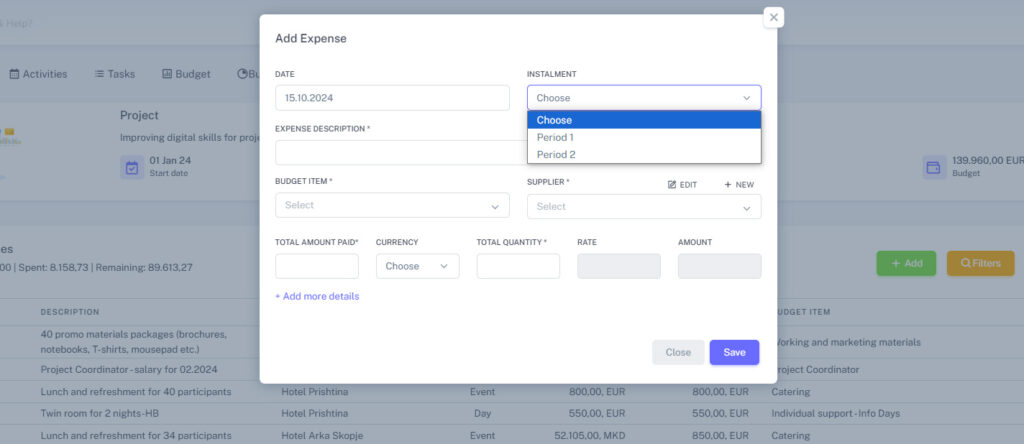
5. You will also see a drop-down menu Instalment where you can choose the corresponding installment for the expense.
6. Provide a brief description of the expense in the Expense description field.
7. In the Budget item field, select the budget item corresponding to the expense.
Please note that because it’s a project with Instalment Management and you have selected an instalment from the drop-down field, the Budget Item drop-down field will only show budget items that correspond to the selected instalment. This has been set during the Budget Allocation process.
8. In the Supplier field, select the person or the organisation to whom the expense has been paid.
If needed, you can add a new supplier by clicking on the +New.
9. Enter the total amount paid in the Total Amount field, and specify the total quantity included in that payment. If there is no quantity, enter 1.
10. In the Currency drop-down menu, select the currency in which the expense was paid. If the paid currency differs from the reporting/project currency, provide the exchange rate, and the total amount will be automatically calculated for the project currency. If the paid currency is the same as the project currency, enter 1 in the Rate field.
11. If you want to include additional information about the expense, such as tax amount or invoice number, click on + Add more details. This step is optional.
12. Click Save to save the expense. You can edit or delete it later by clicking the corresponding icon next to the expense entry.
